Launch your product with content that belongs together
When you are building the product and preparing the launch, each new visual can feel like another brief. Use Memo to bring your Brand Kit, product assets and references into one project, then develop the launch images and short video from a shared creative direction.

Start with what you already have
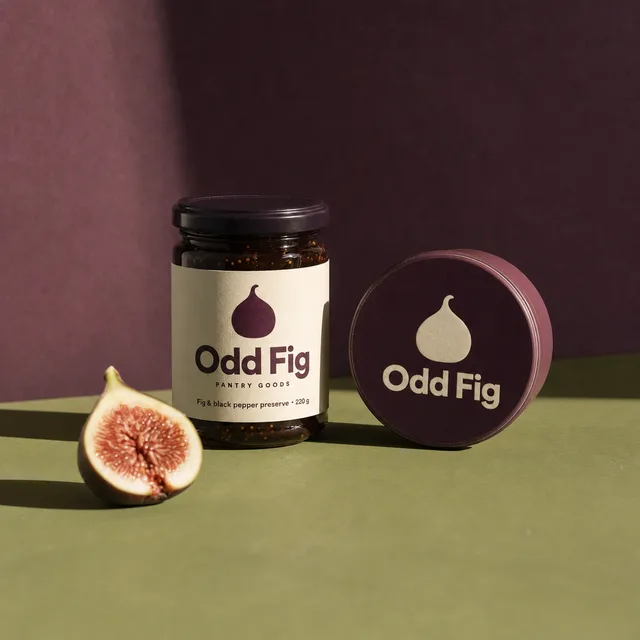
Choose the Brand Kit for the launch. Add your product photos or other source assets, along with references that show the mood, setting or composition you want. Tell Memo what you are launching, who it is for and where the content will appear.
You do not need to arrive with a finished creative concept. Use the guided Studio conversation to shape the brief, then review the proposed prompts, models and formats before generating.
Find the direction for your launch image
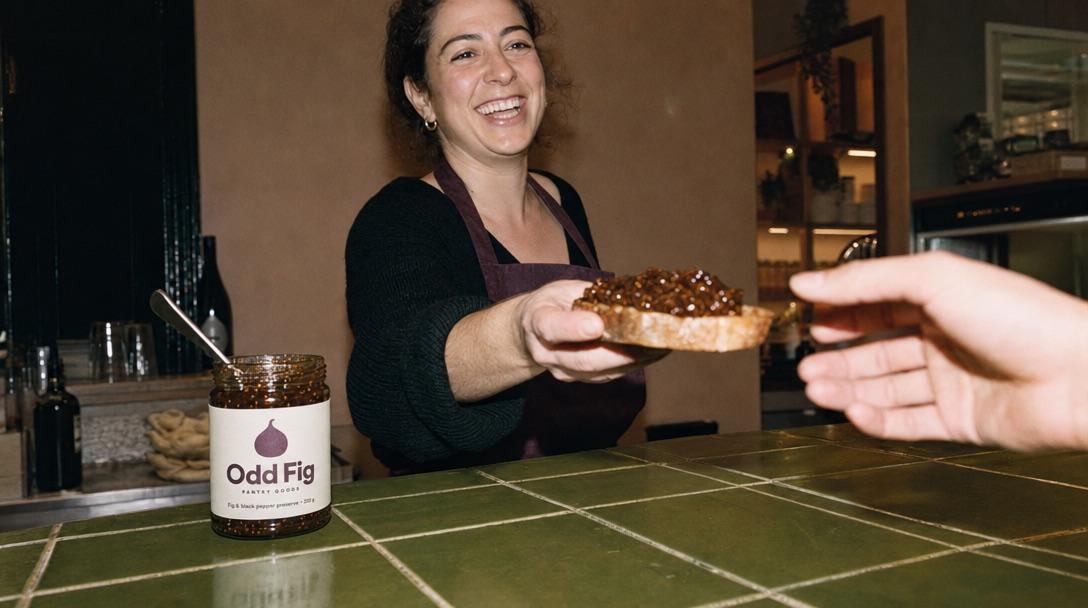
For a physical product, explore an AI product photo using your own product image and selected references. Where supported, Draft gives you a starting pass before Make it final develops that direction with your chosen model. Both stages have their own generation prices.
Review the composition and product details before building more assets around it. Generated text, packaging and logos can change. When a flat image needs the exact logo, Stamp logo places the real logo file onto a new version.
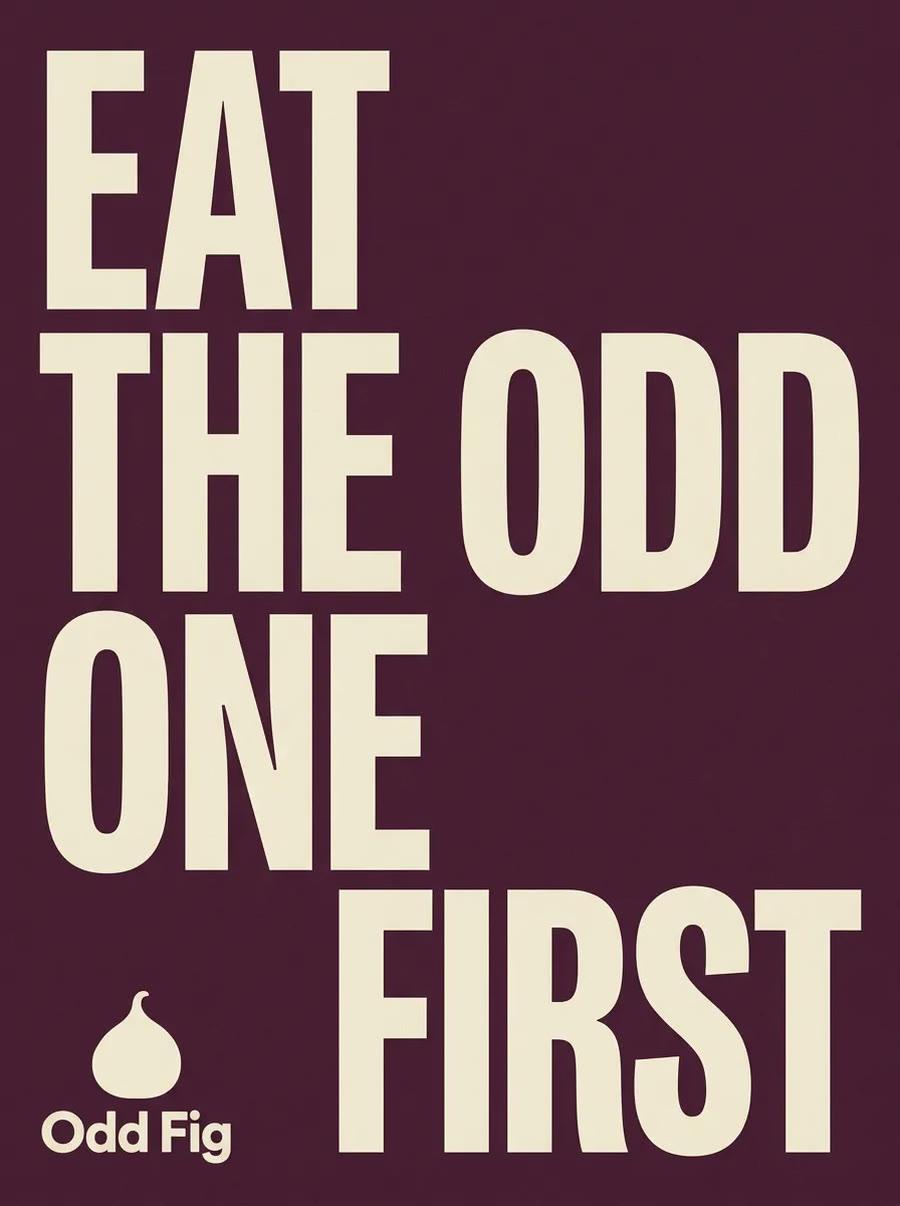
 Nano Banana 2

 Kling 3.0
Build the next assets from that direction
Develop another image for a landing-page visual or social post. Reframe can generate an image in another aspect ratio using the selected result as context; check the new composition and details because it creates a new image.
For motion, take a selected still into a video model that supports a start frame. Describe the movement, check the settings and price, and review the whole clip when it is ready. Keep the source assets and useful results in the project for the next launch update.
Keep a useful method for next time
If you find a product-shot recipe or review checklist you want to repeat, save it as a ready Skill. Bring it to the next brief with the current product and brand selected. The saved method gives you a starting point; you still judge the result.
Give a launch video a story you can reuse
If your launch introduces a character or a recurring setting, keep the story, cast and visual references in a Cinema Kit. Select it alongside your Brand Kit in the guided conversation, then develop the shots from that shared source material. Review each result for continuity before using it.
For a shot that needs more visual planning, Scene Builder Beta lets you block a rough 3D scene and inspect the camera move. It is an optional planning step, separate from the final AI video.
Bring the launch story into a pitch
When Presentations is enabled for your workspace, use the brand’s fonts and assets to develop an editable deck, revise slides in chat and review the export before sharing. Presentation access is not yet available to all workspaces.
FAQ
Questions solo founders ask
Related use cases