Infinite canvas
Pan, zoom, group, connect, and compare references, generators, briefs, and outputs without forcing the project into a linear chat transcript.
Studio pairs an infinite canvas with a creative agent that can see the work in front of it. References, Brand Kits, prompts, generators, briefs, outputs, and the conversation stay in one project—so refinement accumulates instead of restarting from an empty box.
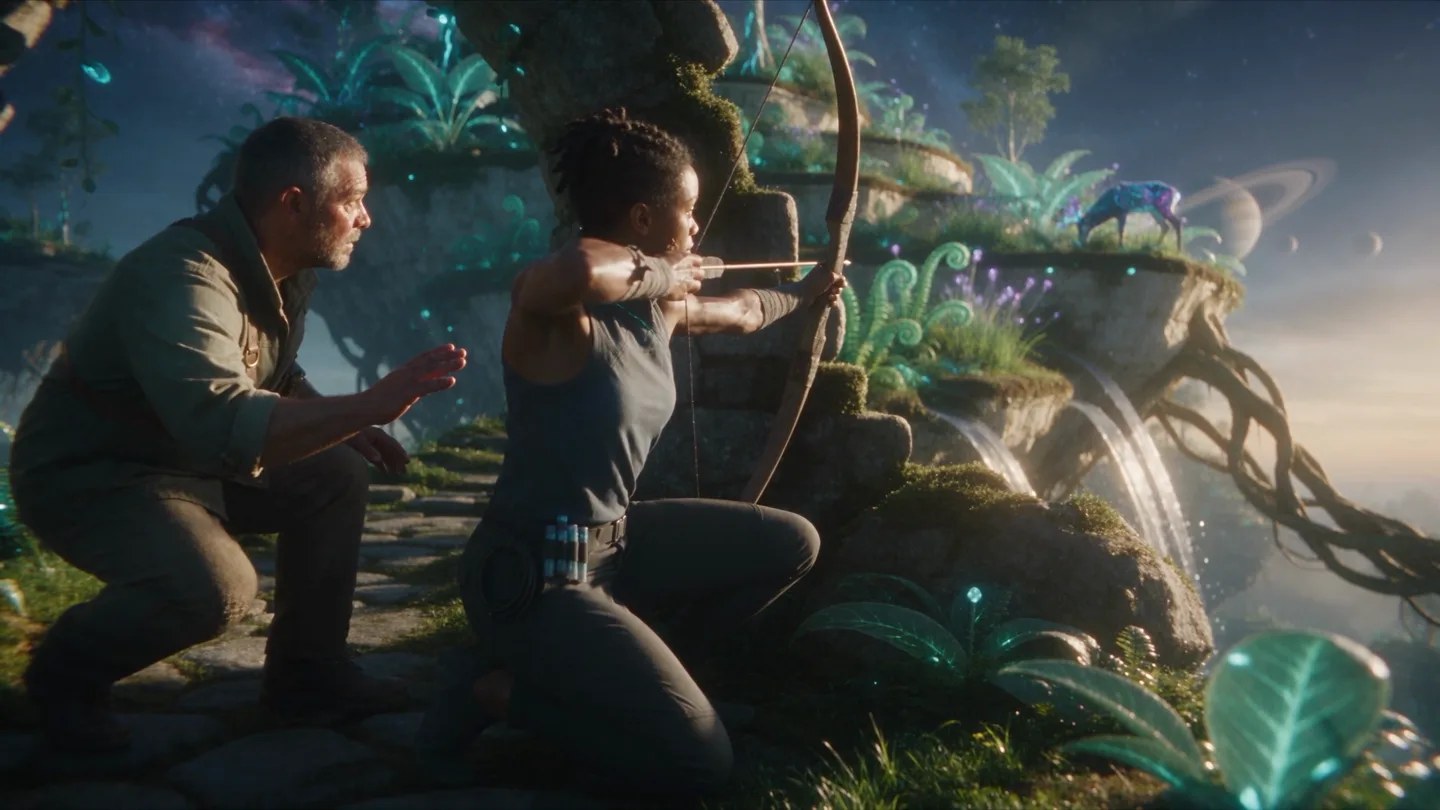
 Seedance 2.5
Seedance 2.5 is now on Memo
Studio is not a chat wrapper around an image model. It is a persistent project surface: moveable nodes on an infinite canvas, direct image and video generators, a brand-aware agent, structured briefs, and every result placed where the ideas can be compared and developed.
Type @ in Studio chat to attach a Brand Kit or a specific reference. Memo loads the relevant colors, typography, guidelines, and imagery as creative constraints for that request while the rest of the canvas remains visible.
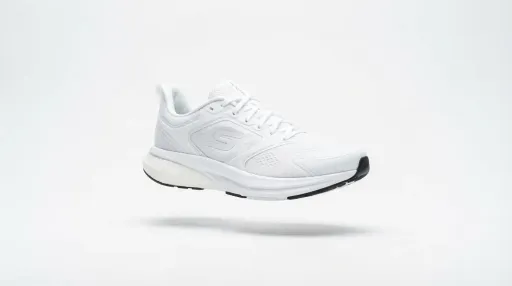

Image and Video Generator nodes make the production controls first-class canvas objects. Prompt directly, choose from the models available for the job, attach references, and see the current credit estimate before running.
 Nano Banana 2
The Studio agent can present a structured creative brief directly on the canvas. Each deliverable carries its own direction and settings, and sequential work can explicitly pass an earlier scene into the next one.
A concrete inventory of the controls and behaviors available on this surface today.
Pan, zoom, group, connect, and compare references, generators, briefs, and outputs without forcing the project into a linear chat transcript.
Image, video, upload, asset, color, text, list, description, brief, group, Director, Workflow, generator, and Assistant nodes each preserve the right structure.
Responses stream with tool status and generation progress while the agent retains the context of the project conversation.
Canvas changes save on a two-second debounce and again when the project unmounts, with a 50-step undo and redo history for local edits.
Use Director to compose an idea into a stronger prompt, or place a saved Workflow on the canvas when a repeatable recipe already exists.
Search, rename, and return to projects while completed image and video results remain available in the Generations view.